Starting Your First Game Session
For your first session, choose a game from Games in Launcher Admin. Decide which PC will host the game and which PCs will join as clients.
Prepare the PCs
Section titled “Prepare the PCs”- Connect the PCs. Check that they appear as Online in My Agents on the intended Launcher Server.
- On each PC, open Games in Windows Agent, find the same game, and set its installation folder. Check for Ready and the required role under Roles.
- If the game is missing, check the catalog loaded by Launcher Server and Agent. Participating PCs must be idle and use a compatible catalog.
Prepare the game token
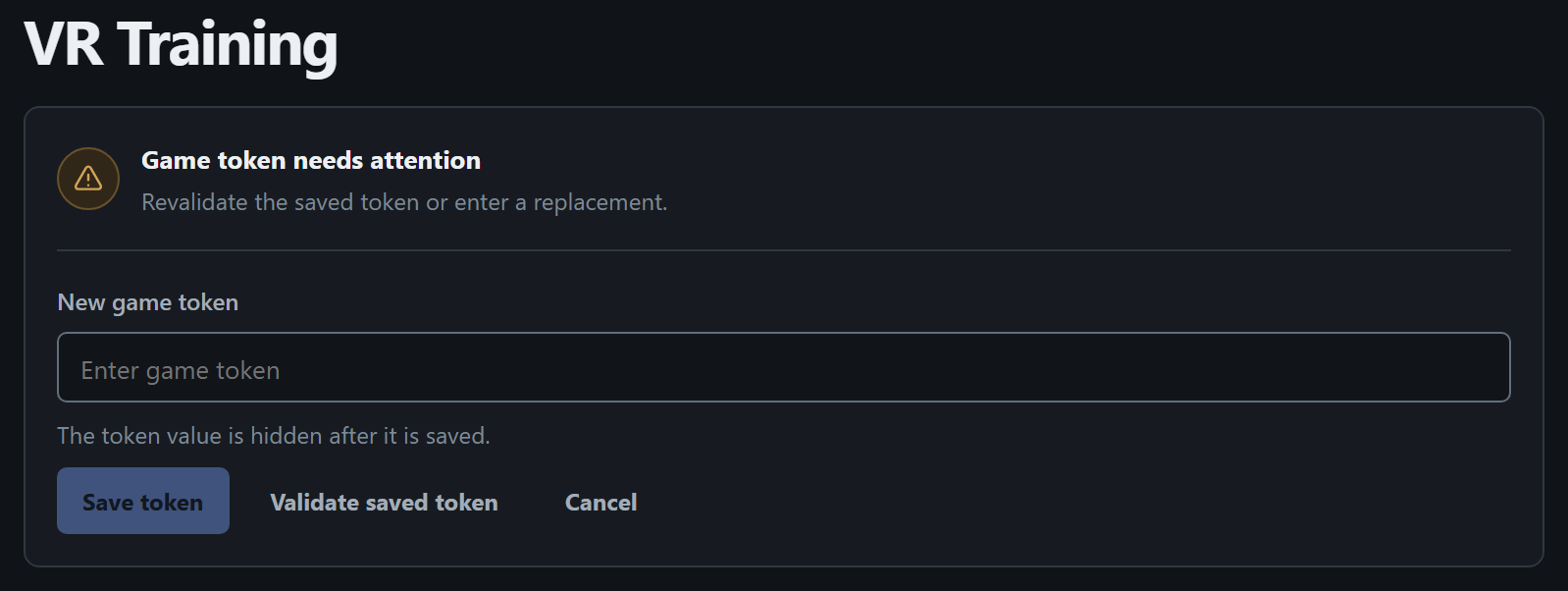
Section titled “Prepare the game token”- Open the game under Games in Launcher Admin. If you already see Game token ready, continue to selecting PCs.
- If a token is already saved, go to validation. Otherwise, get the token for this game from the person who manages access. Select Enter token if needed. Put the value in New game token and select Save token.
- Select Validate saved token and wait for Game token ready with the Validated badge. If validation fails, see Game Tokens.
Select participants and start the game
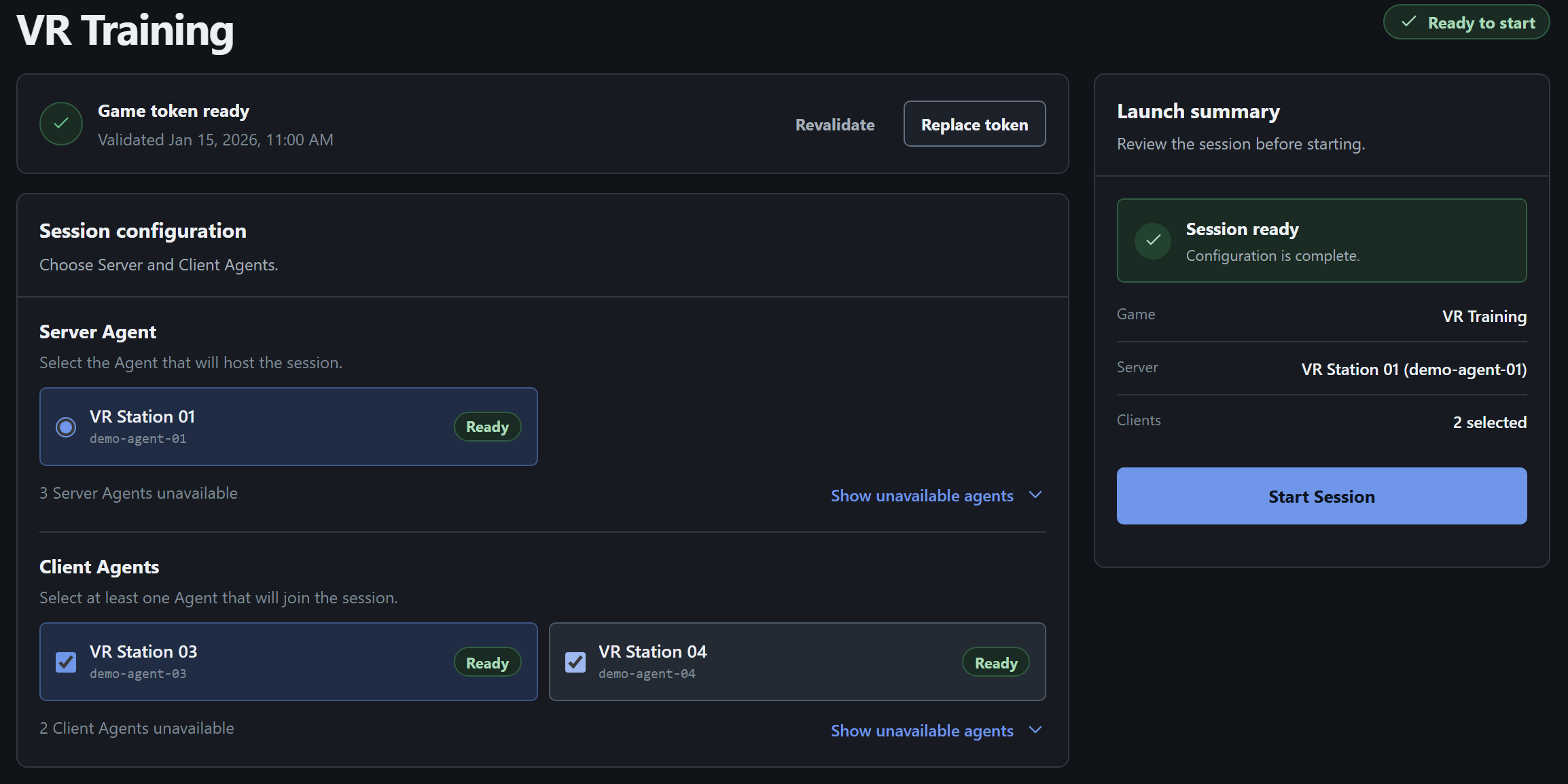
Section titled “Select participants and start the game”- In Session configuration, select the intended Server Agent card, even if there is only one available PC. This PC runs the game’s server process.
- Under Client Agents, select the player stations. If the game requires clients, select at least one. Choose client PCs from the remaining participants.
- In Launch summary, check the game, Server, and the Clients count. If you see Session not ready, follow the actions in the summary. For an unavailable PC, expand Show unavailable agents under the relevant role.
- When you see Session ready, select Start Session. For more about selecting participants and resolving launch errors, see Preparing and Starting a Session.
Check the launch and end the session
Section titled “Check the launch and end the session”- When the request is accepted, Running Sessions opens. Wait for the card to refresh and check each participant. Connected means Agent reported a running game process. A session can show Running while a participant has yet to launch the game.
- If a participant stays Disconnected or the session shows Failed, check the affected PC and see how to handle a partial launch. If some participants are already playing, review the current session card before trying another launch.
- After the game, select Stop Session on the correct card. Confirm the game and participants, then select Stop Session in the confirmation. While Stopping is visible, wait for the result. Check that the card moved to History.