Updating the Game Catalog
The catalog describes games, their roles, and how to launch them. Windows Agent keeps a local copy so it can populate Games, check local installations, and launch games with the appropriate profile. Launcher Server uses its own copy for the game list and session setup in Launcher Admin.
Check the loaded catalog
Section titled “Check the loaded catalog”Open Diagnostics → Configuration.
| Field | What it shows |
|---|---|
| Game catalog | The path to the file Agent loaded. |
| Catalog mode | How the catalog is selected. An installed Agent normally shows Deployed. |
| Catalog source | Where the loaded file came from. ActiveStoreRevision is the active local revision and PackagedCatalog is the bundled catalog. |
| Catalog revision | The loaded revision number, or Not versioned if there is none. |
| Catalog SHA-256 | A checksum of the catalog contents. It can reveal differences even when revision numbers match. |
Synchronize the catalog
Section titled “Synchronize the catalog”- In Diagnostics, scroll to Catalog synchronization. When HTTP source shows Enabled, Agent checks the configured source at startup and on request through Check for Catalog Updates.
- Select Check for Catalog Updates and wait for a result under Last check. If there is a newer revision, Agent downloads and verifies the catalog, then activates it on disk. The running Agent keeps using the loaded catalog until it restarts.
- If Restart Agent to Apply appears, end the game and wait for any saves or updates to finish. Select Restart Agent to Apply. The connection drops temporarily during the restart.
- When Settings reopens, check Catalog revision in Configuration, the connection in General, and the list in Games. Set installation folders for any new games that need them.
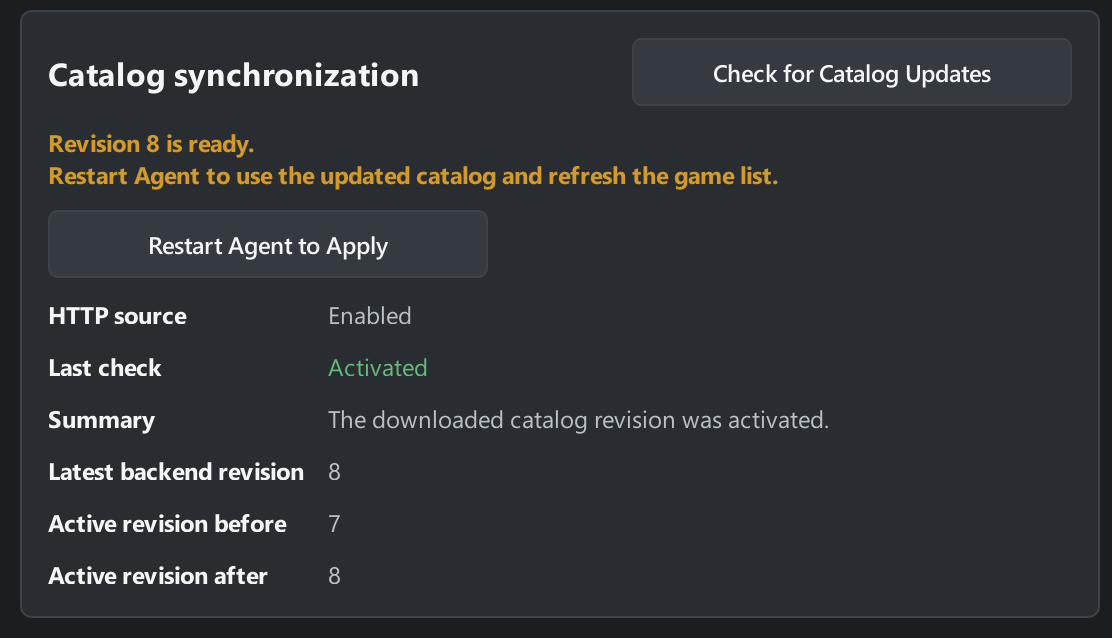
A restart is required when the active revision on disk differs from the one Agent loaded. A repeat check may show Up to date while the restart button is still available. Agent blocks the restart while it owns a running game. You can still run the catalog check during a game.
Read the result
Section titled “Read the result”| Last check | Meaning |
|---|---|
| Activated | The downloaded revision was activated on disk. Check whether a restart is required. |
| Up to date | The active local revision matches the source revision. |
| Source behind | The source offers an older revision. Agent kept the current one. |
| Disabled or Not attempted | The source is disabled or synchronization has yet to be requested. |
| Failed | Check Summary and the diagnostic fields. |
If you see Failed, check the network and try again. Agent can keep using a valid local copy. If the error recurs or the source is disabled, give your administrator the current revision, Summary, and any Diagnostic code and Diagnostic message.
A catalog ID, revision, or SHA-256 mismatch can cause Needs attention in My Agents even when the Agent is Online. Open View issue and compare the details with the Launcher Server catalog. Confirm which PCs or server need an update.
This procedure updates game definitions. Use Application update to change the Agent application version.