Windows Agent Overview
Windows Agent runs in the background on each Windows PC that takes part in a club’s game sessions. The PC can be a player station or the machine that hosts the game’s server process. Agent connects to Launcher Server, reports game readiness, and starts or stops game processes at the server’s request.
Open Settings
Section titled “Open Settings”- On the gaming PC, find the New VR Launcher Agent icon in the Windows notification area. Expand the hidden icons if needed.
- Right-click the icon and select Open Settings. You can also double-click the icon.
- If Agent is stopped, open the New VR Launcher Agent desktop shortcut.
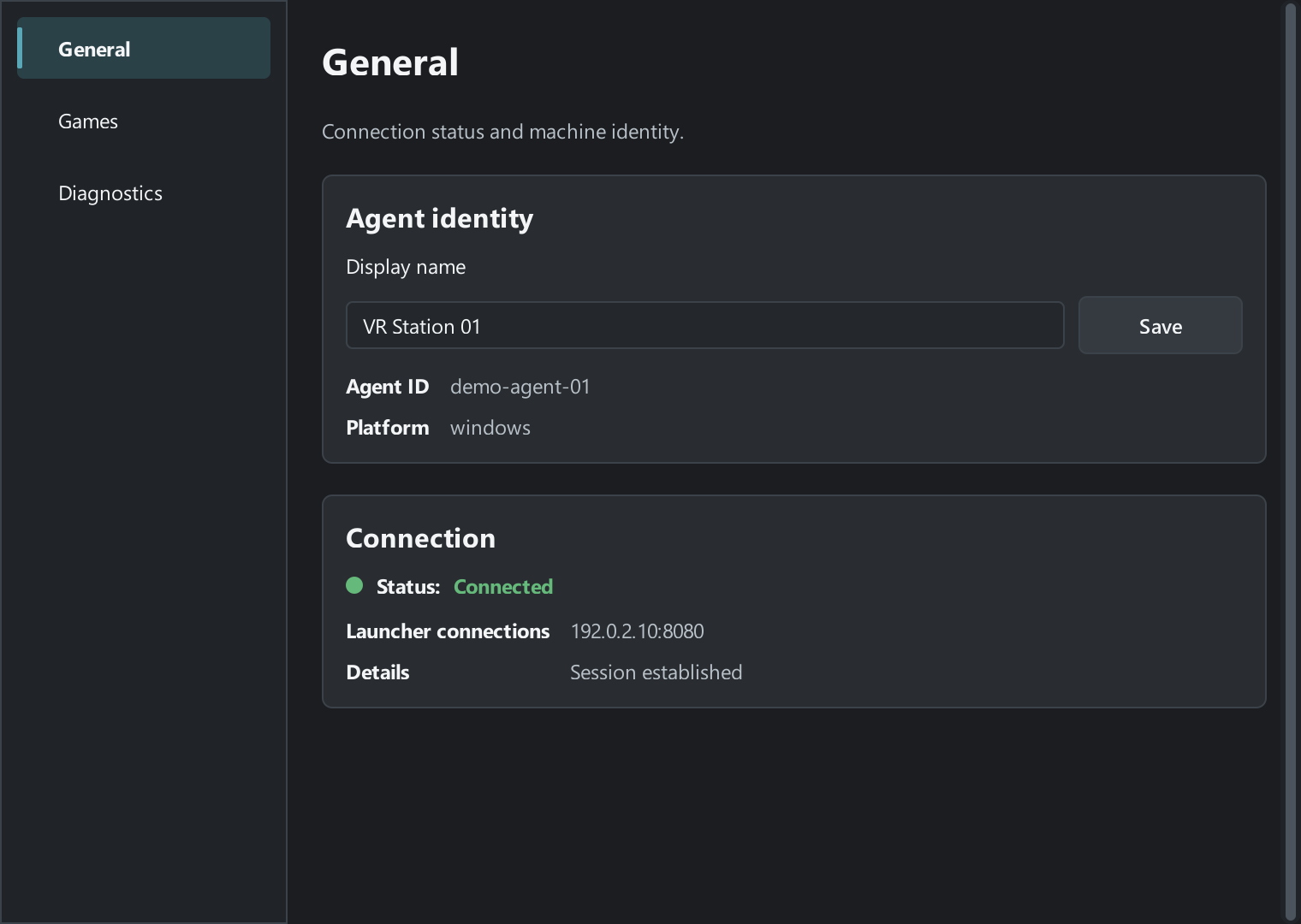
What you can do on the gaming PC
Section titled “What you can do on the gaming PC”| Tab | What you can do |
|---|---|
| General | Change the computer name and check the connection. |
| Games | Set local game folders and check readiness. |
| Diagnostics | Update the catalog, update the Agent application, or check configuration and open logs. |
Open Launcher Admin in your browser to add the PC to My Agents, choose a game and assign PCs to a session, or stop a session.
Close Settings or exit Agent
Section titled “Close Settings or exit Agent”When the system tray is available, closing the window hides Settings and Agent keeps running. The tray menu also offers Open Logs.
To exit Agent, wait for the game to finish and select Exit from the tray menu. Launcher Server will lose its connection to the PC. If the system tray is unavailable, closing the window exits Agent.