Manage running sessions
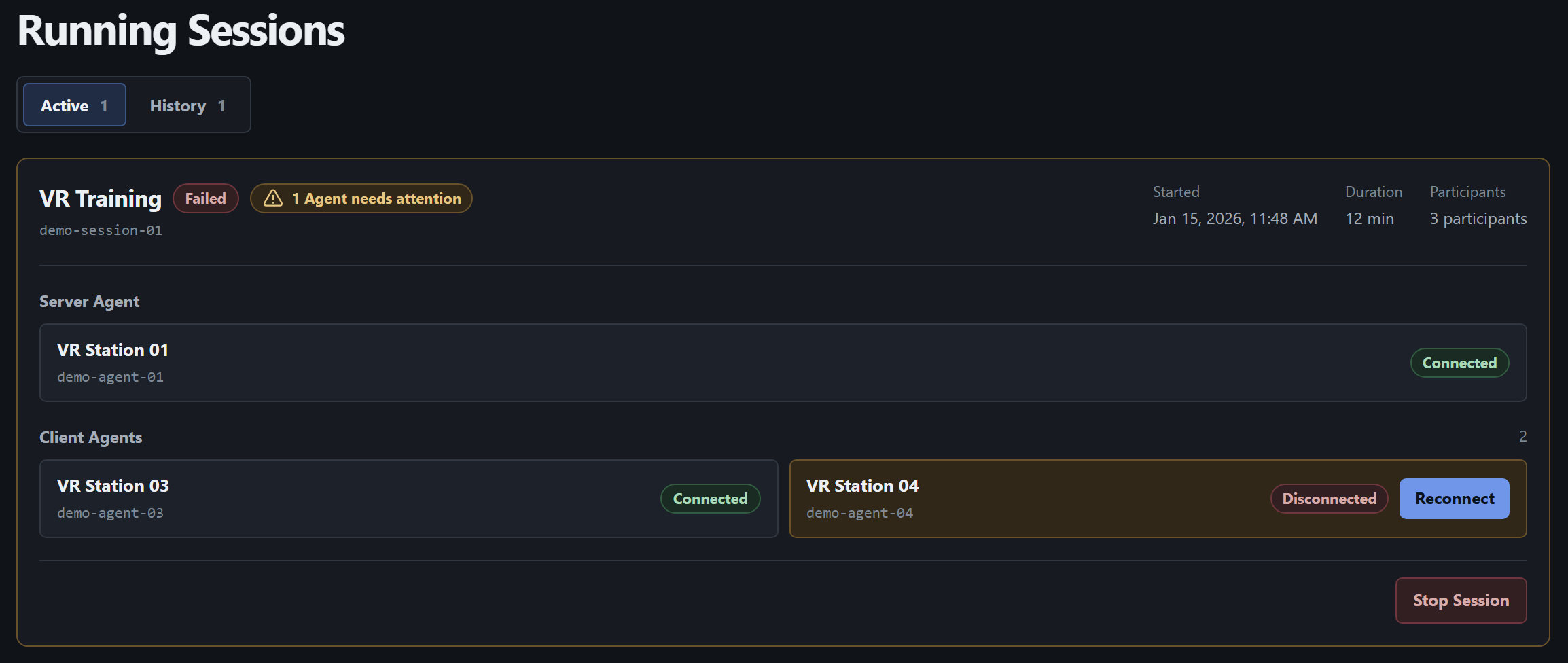
Open Running Sessions from the sidebar. Active shows sessions that are starting, running, or stopping. A Failed session stays there while any participant is still running. History contains completed sessions and other inactive records.
Check whether the game started
Section titled “Check whether the game started”The card shows the game, session ID, start time, and participants. The Server Agent hosts the session and the Client Agents join it.
| Session status | What to check |
|---|---|
| Starting | Wait for the card to refresh. Participants may show Connecting. |
| Running | Check each participant. Connected means the Agent reported a running game process. |
| Failed | Look for Disconnected participants. Others may still be playing. |
| Stopping | Wait for the stop result. |
| Completed | The session has ended and is available in History. |
Retry a client launch
Section titled “Retry a client launch”- Find the PC under Client Agents on the active card. Reconnect is available for a client whose process failed to start or stopped while the session is still running.
- Select Reconnect. If it is disabled, read the reason by the card. Check the Agent connection and end the conflicting game process if the PC is busy.
- After the command is sent, check the client’s status again. If the retry fails, look up the command in Diagnostics.
Stop a session
Section titled “Stop a session”- Select Stop Session on the correct card.
- Check the game and participants on the card. At Stop this session?, confirm with Stop Session. This stops the game for every participant.
- Wait for the stop to finish and check History. If it stalls, read the feedback on the card and check the PCs’ connections and pending commands in Diagnostics.
If the session list itself fails to load, Retry reloads it. History belongs to the current Launcher Server run. Save any details you need for support before restarting the server.