Update the game catalog
The catalog determines which games appear under Games and which launch options and participant roles each game supports. Launcher Server and Windows Agent each use their own copy. To join a session, a PC must report a compatible catalog.
Check and update the catalog
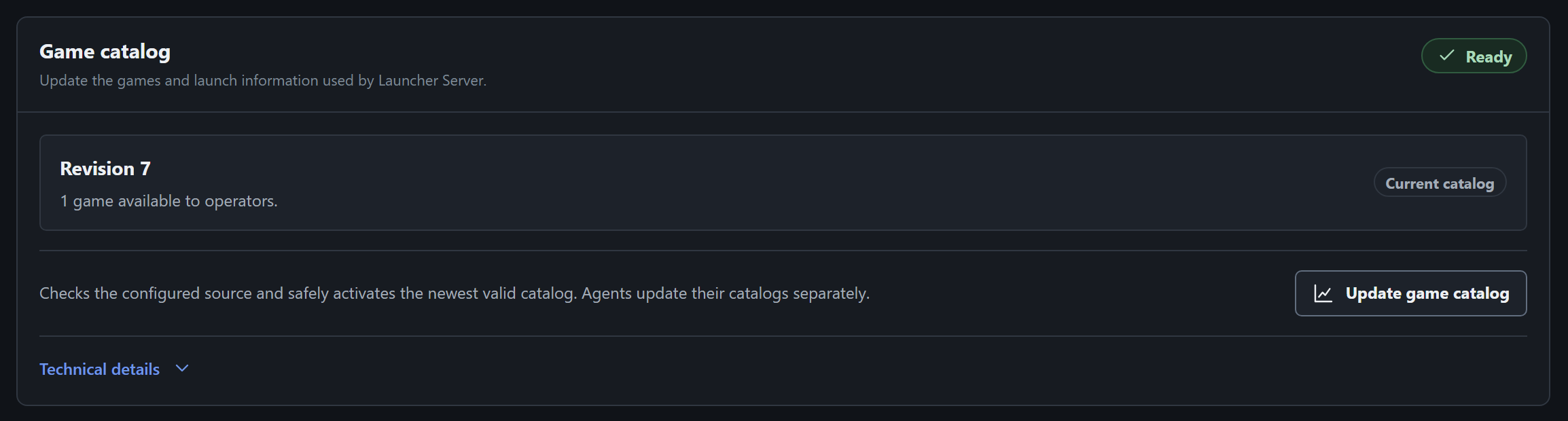
Section titled “Check and update the catalog”- Select Settings in the header and find Game catalog. It shows the loaded revision or Built-in catalog, the game count, and the catalog status.
- Select Update game catalog and wait for the result. The action is available when Launcher Server can be reached and a catalog update source is configured.
- Read the result in the same panel.
| Result | What to do |
|---|---|
| Game catalog updated | A new revision was activated. If you see Restart Launcher Server to use the updated game catalog., end active sessions and restart Launcher Server. |
| Game catalog is up to date | The configured source already matches the current revision. |
| No update applied | The source has an older catalog. Share the revision details with your administrator. |
After restarting, confirm the revision in Settings and check the Games list. Updating the Launcher Server catalog, updating each Windows Agent catalog, and installing games on the PCs are separate operations.
If a game or PC is unavailable
Section titled “If a game or PC is unavailable”If the catalog shows Needs attention or an update fails, expand Technical details under Game catalog. Send support the active revision, message, and any error code shown. If the update button is disabled, read the reason next to it. Ask your administrator to check the server configuration if the update source is missing.
If a PC in My Agents shows Needs attention, select View issue. A catalog mismatch can make the PC unavailable for a session even when it is Online. Compare the Launcher Server revision with the catalog details in Windows Agent Diagnostics on that PC. Coordinate any Agent update with your administrator, then check the PC’s availability on the game page.