Troubleshooting
Start with what you see on screen. When contacting support, record the PC or server, the time, and the message. For a game issue, include the Game ID and the participant’s role. Keep tokens out of support materials.
Installation and startup
Section titled “Installation and startup”- Launcher Server does not start. Check that Setup.exe finished and that you are opening New VR Launcher Server on the server PC. If Launcher Admin remains unavailable at the local address, share the setup message or log details with your administrator. The
logs/runtime/launcher_serverfolder is under%ProgramData%\New VR Launcher\Server. Installing Launcher Server. - Launcher Admin did not open. On the server PC, open
http://localhost:8080/in a browser if the port is unchanged. If it works locally and another PC cannot open it, check the address, club network access, and firewall rules with your administrator. Check the network. - The Agent window or tray icon is missing. Expand the hidden icons. If the icon is there, select Open Settings. Otherwise, open the New VR Launcher Agent desktop shortcut. When the tray is unavailable, Settings opens in a window. If the shortcut fails to open Settings, tell your administrator what happened during setup and check the Agent logs if available. Starting Windows Agent.
Connections
Section titled “Connections”- Agent is missing from both lists. Check the Launcher Admin address. On the gaming PC, open General and check Status, Launcher connections, and Details. Connecting Your First Computer.
- Offline or Connection unavailable. For Offline, check Last seen, whether the PC is on, and the connection in Agent. For Connection unavailable, wait for fresh data in Launcher Admin or select Retry if offered. Managing My Agents.
- A PC is in Available Agents but absent from the participant options. Select Add to My Agents on the intended server. Then check the PC on the game’s page. Preparing and Starting a Session.
- Agent is connected to only some servers. Find the intended server under Launcher connections in General. Check the connection mode and that server’s address and status. Networking and Multiple Launchers.
Games and sessions
Section titled “Games and sessions”- Not configured or Executable not found. For Not configured, select the installed game’s folder with Browse and choose Save. For Executable not found, check the expected file in Message, correct the folder or repair the game files, and save again. Game Installations and Readiness.
- The game shows Ready, but the PC is unavailable. Expand Show unavailable agents under the required role. Check My Agents, the connection, running processes, the required role, and catalog compatibility. Select participants.
- Catalogs are incompatible. In My Agents, open View issue if Needs attention appears. Compare the details on Agent and on Launcher Server. After the coordinated update, check whether a restart is required.
- Token validation fails. Check the game and the token you were issued. Ask the person who issued it if it was rejected, or try the check again later if the service is temporarily unavailable. Confirm that Game token ready appears. Game Tokens.
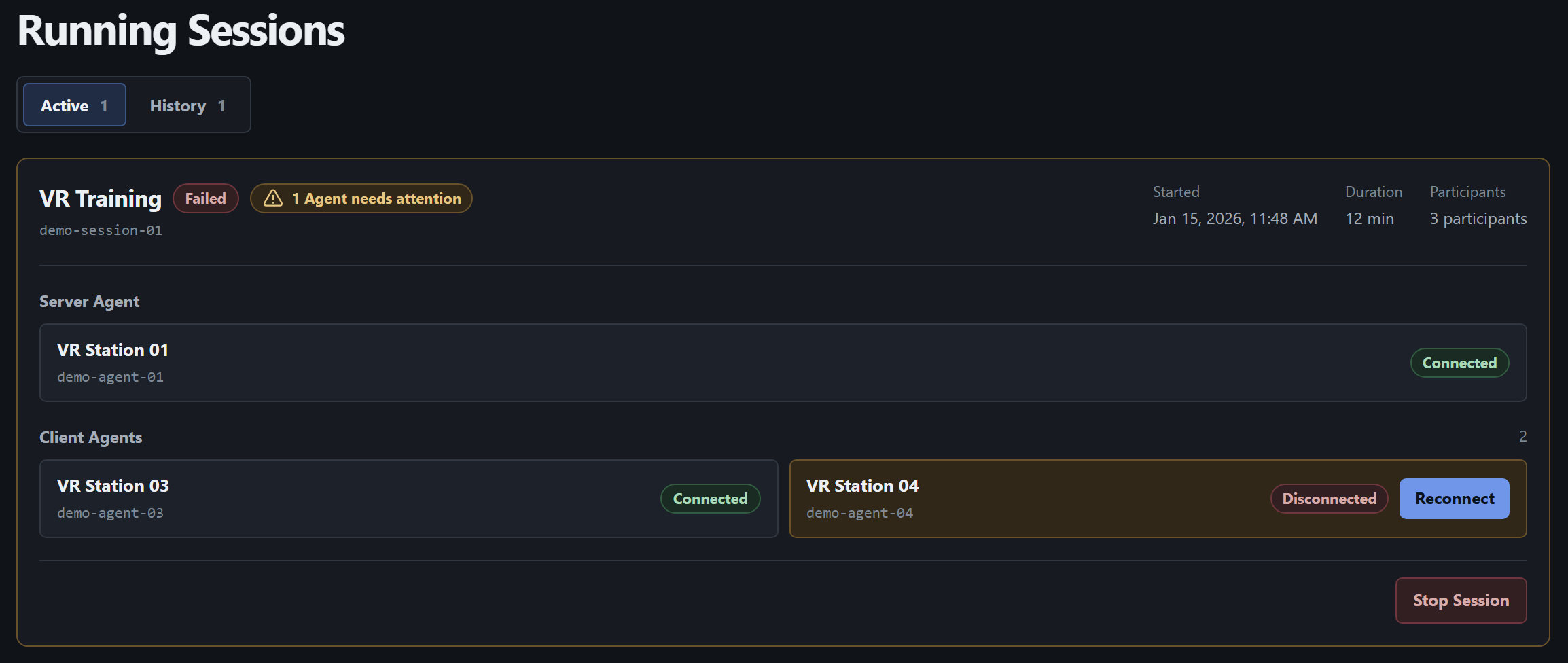
- The session fails to start, or one participant does not launch the game. Read the reasons near Launch summary. If the card already appears in Running Sessions, find the Disconnected participant and look for its recent command in Diagnostics. Other participants may still be playing.
- Reconnect is unavailable or fails. Check that the session is still active with no stop requested, and that the affected Client Agent is disconnected from the game while its PC is online and idle. Read the reason shown next to the participant. Reconnect a client.
- Stop Session does not end the session. While you see Stopping, wait for a refresh. If stopping stalls or returns an error, check the participants’ connections and Recent Commands in Diagnostics. Stop a session.
Updates and restarts
Section titled “Updates and restarts”- Catalog synchronization failed. On Agent, check Diagnostics → Catalog synchronization → Last check and Summary. On Launcher Server, read the result under Settings → Game catalog and open Technical details if needed. Check source availability with your administrator and retry. Agent catalog · Launcher Server catalog.
- Agent update failed. In Diagnostics → Application update, record Status and any Code and Message. For a download error, check the network and retry Check for Agent update. Updating Windows Agent.
- Launcher Server update failed. Under Settings → Launcher Server update, read the message and Technical details. For a check failure, select Check again. If installation keeps failing, share the details with your administrator. Launcher Server maintenance.
- A restart is required and the action is unavailable. For Agent, wait for the game and any current operations to finish. For Launcher Server, end active sessions, wait for fresh status, and open Settings at the local address on the server PC. Restart Agent after synchronization · Restart Launcher Server.