Launcher Server diagnostics
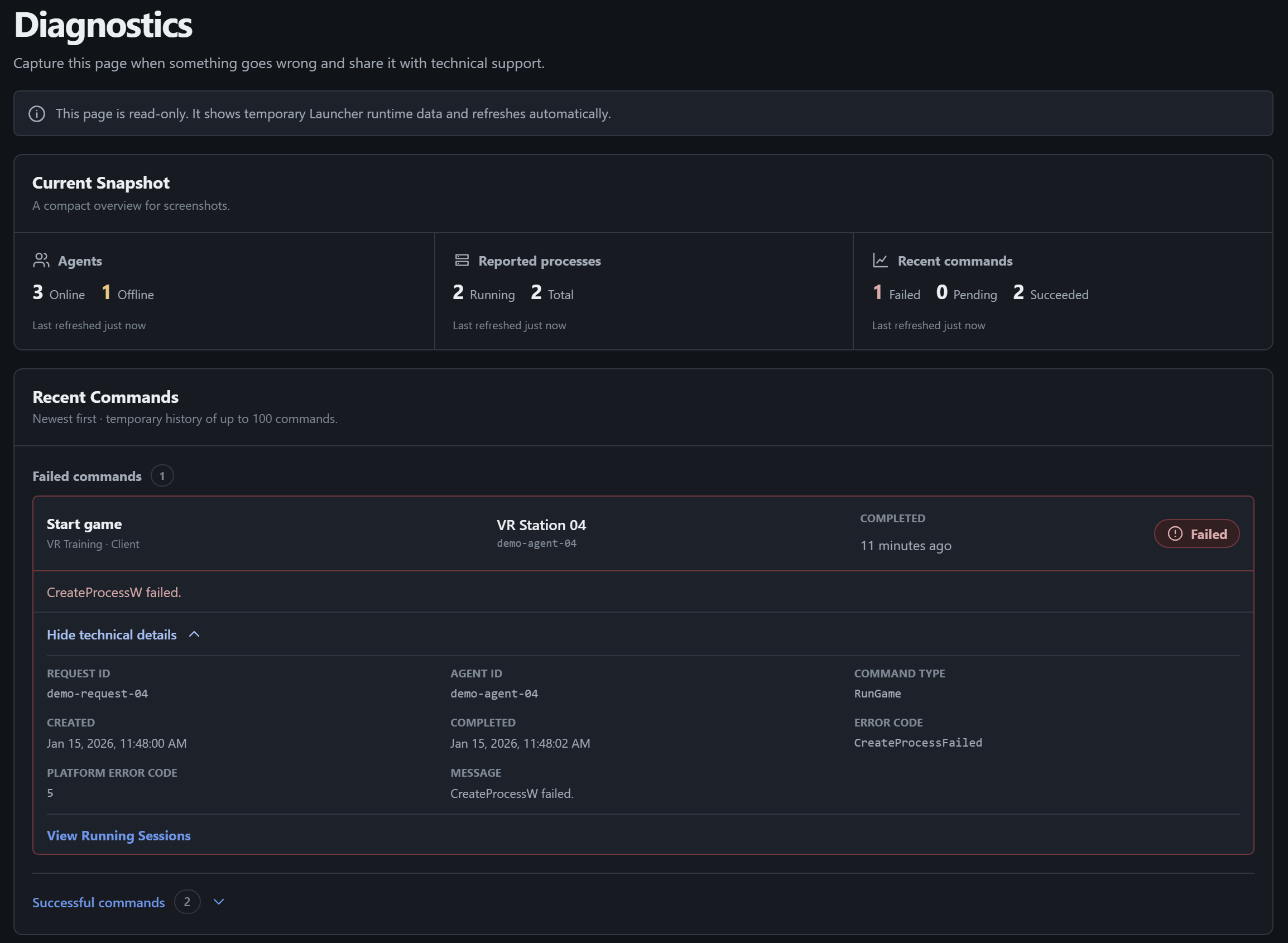
Open Diagnostics from the Launcher Admin sidebar. It shows the latest information Launcher Server received from Agents and the results of recent commands. The page refreshes automatically. A Cached badge means a refresh failed and the page is showing the last available values. Check the refresh time next to the affected metric.
Investigate a problem
Section titled “Investigate a problem”- Start with Current Snapshot. It summarizes online and offline Agents, running processes, and Failed, Pending, and Succeeded commands.
- If a start, stop, or reconnect action failed, open Recent Commands. Match the command by PC, time, and session if shown. Read the message under Failed commands. An entry under Pending commands is still waiting for a result. Expand Successful commands to see successful ones.
- In Agent Status, check Online or Offline and Last seen. If a PC has dropped off the network, check its Windows Agent connection.
- Under Reported Processes, find the game and PC. This is the last process state reported by the Agent. Compare it with the participant in Running Sessions.
What to send support
Section titled “What to send support”Include what you did and when, the game name, the PC name, and the session ID if there is one. Expand Technical details for the relevant command, Agent, or process. Attach a screenshot or record the Agent ID, Request ID, and Error code if shown. Keep tokens and other private information out of the report.
These details belong to the current Launcher Server run. Capture them before restarting. If Cached persists, mention it in the report and check for Launcher Server online in the header.