Save and verify a game token
A game needs a token before it can launch. Get the token for that game from the person who manages access, then open the game under Games. The token panel is above Session configuration.
Save and validate a token
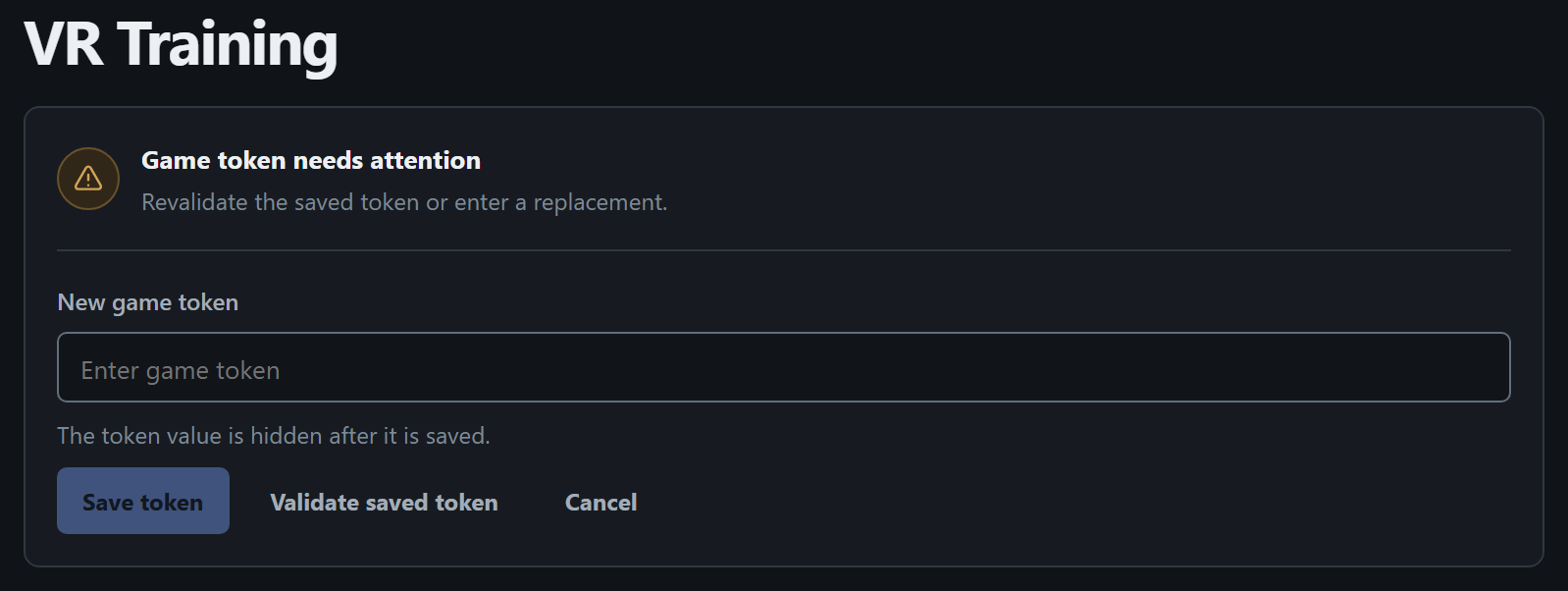
Section titled “Save and validate a token”- If you see Game token required and the New game token field is hidden, choose Enter token. For a game that already has a saved token, use Replace token if you need to open the editor.
- Paste the token into New game token and select Save token. The field clears after saving. A new token requires a separate validation step.
- Select Validate saved token. When the validation service accepts the saved value, the panel shows Game token ready and Validated. You can now prepare a session.
Replace or recheck a saved token
Section titled “Replace or recheck a saved token”- To replace a token, select Replace token if the editor is closed. Enter the new value, then select Save token followed by Validate saved token.
- To check a previously accepted token again, select Revalidate. If validation is still required, the action is Validate saved token. Save or clear any draft in New game token first. Cancel clears an unsaved draft.
If validation fails
Section titled “If validation fails”- Token rejected. Check that the token was issued for the game you opened. Ask for a replacement if needed.
- Validation service temporarily unavailable. Try again later. If the error persists, give your administrator the game name and the message.
- Token changed during validation. Validate the currently saved value again.
- Launcher Server could not save the token state. Retry the action. If it fails again, share the message with support.