Updating Windows Agent
On the target PC, open Windows Agent Settings, select Diagnostics, and scroll to Application update. This updates the application on that PC. The game catalog has its own update procedure.
Check the version and stage a package
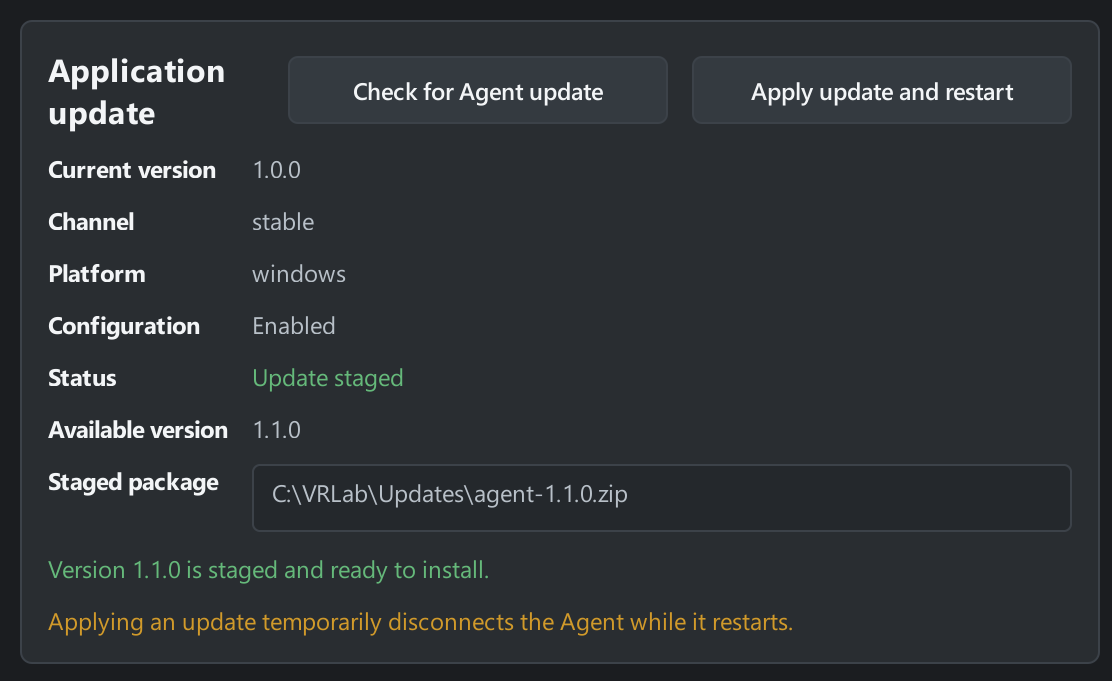
Section titled “Check the version and stage a package”- Current version shows the installed Agent version.
- Channel shows the configured release channel. Agent checks this channel for the platform listed under Platform.
- Status shows the result of the check or the progress of applying the update.
- Available version shows the newer version when one is known.
- Staged package shows the path to the downloaded and verified package. Not staged means the package is still unavailable for installation.
Select Check for Agent update. Agent checks the configured source. If it finds a newer release for the channel and platform, it downloads and verifies the package. Wait for Up to date, Update staged, or an error. If Configuration shows Disabled or the configuration is unavailable, contact your administrator.
Apply the update
Section titled “Apply the update”- End the game on this PC. Once a package is staged and Agent is idle, select Apply update and restart. While Agent owns a running game, the button is disabled and the panel shows Stop the running game before applying the Agent update.
- Approve the Windows elevation prompt. Once the separate update helper starts, Agent shuts down gracefully. The helper waits for Agent to exit, applies the package, and starts Agent again. The PC may disappear from the connected list during the update.
- When the tray icon returns, select Open Settings and check Current version and the result under Application update. Then check the connection to the intended Launcher Server in General and game readiness in Games.
You can check for updates and stage a package while a game is running. Apply it after the game and any other maintenance operations finish.
If the update fails
Section titled “If the update fails”If you cancel the Windows prompt, Agent stays on its current version. If you see Update failed, read the summary and any Stage, Code, and Message fields. For a download error, check the network and retry Check for Agent update. If the error recurs or Agent does not return after the update, give your administrator the current or previous version, the expected version, and the diagnostic details.