Update and maintain Launcher Server
Select Settings in the Launcher Admin header. The Launcher Server summary shows the name, connection, installed version, game catalog, and update status. These fields are read-only. The installation administrator manages the network address, port, and update sources. Operators run maintenance actions using the buttons on this page.
Check for and install an update
Section titled “Check for and install an update”- Under Launcher Server update, select Check for update or Check again. The check prepares a verified package when a suitable release is available.
- Wait for the result. Up to date means there is no newer version. If you see Update available, read the description. Install update and restart appears when a package is ready.
- In Running Sessions, make sure there are no active sessions left. Return to Settings and select Install update and restart.
- At Install Launcher Server update?, select Install and restart. Launcher Admin may temporarily lose its connection while it shows Installing update. When Launcher Server online returns, check Installed version.
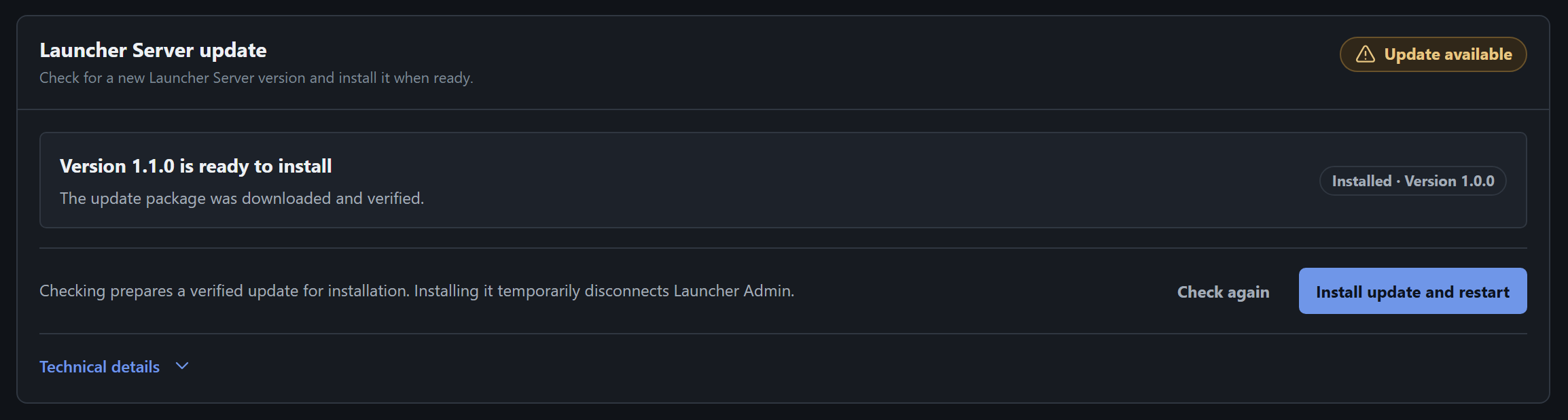
If you see Needs attention, read the message under Launcher Server update and open Technical details if support needs more information. Use Check again to retry a check. If checking is unavailable because of the source configuration, contact your administrator.
Restart or stop the server manually
Section titled “Restart or stop the server manually”- Restart. In the Launcher Server summary, select Restart Launcher Server and confirm with the button of the same name. When you see Launcher Server is restarting, wait for a fresh Launcher Admin window. If it does not open, go back to the local address. Restart when an action such as a catalog update tells you to.
- Stop. Select Stop Launcher Server and confirm with the button of the same name. You can close the tab once it says Launcher Server is stopping. To start it again, open the New VR Launcher Server desktop shortcut on the server computer.