Manage My Agents
An Agent is the application on a gaming PC that lets Launcher Server manage game sessions on that PC. In Launcher Admin, open Agents from the sidebar. If your venue uses several Launcher Servers, open Launcher Admin for the server you want to use. Each server has its own My Agents list.
Where to find a computer
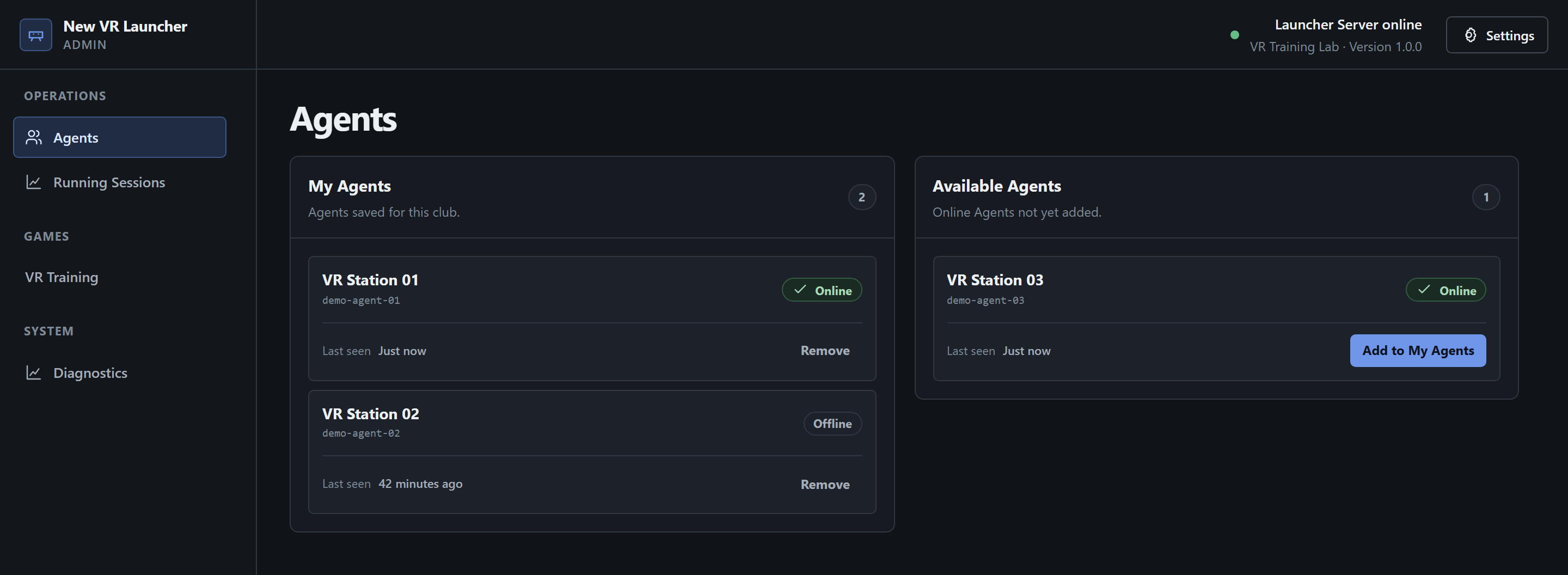
Section titled “Where to find a computer”- My Agents lists the computers saved for this Launcher Server. They stay in the list if they lose their connection.
- Available Agents lists computers that are connected to this server and have yet to be added. A new computer appears here once Windows Agent is running on it and connects to the server.
Each card shows the computer name, its Agent ID, and Last seen, the time the server last heard from the Agent. If two computers share a name, match the Agent ID to the one on the computer’s General tab.
Add a computer
Section titled “Add a computer”- Find the computer in Available Agents.
- Select Add to My Agents on its card.
- Wait for the card to move to My Agents.
Remove a computer
Section titled “Remove a computer”- Select Remove on the computer’s card in My Agents.
- Check the name in the confirmation. Select Remove Agent, or choose Cancel to keep the entry.
- The computer disappears from My Agents. If it is still connected to this server, it can reappear in Available Agents.
Removal only affects this Launcher Server’s list. Windows Agent and the games stay on the computer.
Check status and find a missing Agent
Section titled “Check status and find a missing Agent”- Online means the Agent is connected to this Launcher Server. If the card also shows Needs attention, select View issue to see the game catalog message.
- Offline means a saved computer is currently disconnected. It may be turned off, the Agent may have exited, or the connection may have dropped. Check Last seen, then check the connection on the computer.
- Connection unavailable means Launcher Admin has yet to receive connection data. If you see a warning about cached data, wait for the next refresh or select Retry if the button is available.
- If the computer is missing from both lists, confirm that you opened the right Launcher Admin. On the gaming PC, open Windows Agent settings and check the connection. Once it connects, return to Agents and wait for the list to refresh.