Game Installations and Readiness
Open Games in Windows Agent on the gaming PC. The cards come from the catalog loaded by this Agent. A new game appears after you apply the catalog even if its files have yet to be installed on the PC.
Set the game folder
Section titled “Set the game folder”- Find the game by name or Game ID, its identifier in the catalog. Backend code is a separate game code defined in the catalog. Roles lists the roles with Windows launch profiles, such as
clientfor a player station andserverfor the PC hosting the game’s server process. - Select Browse and choose the root folder of the installed game. You can also enter the path directly.
- Select Save and wait for the message Game install settings saved. Local path shows Saved when a nonempty path has been stored.
- Check the status and any Message. Agent checks readiness again and refreshes the cards after saving. Saving a path normally requires no restart or reconnection.
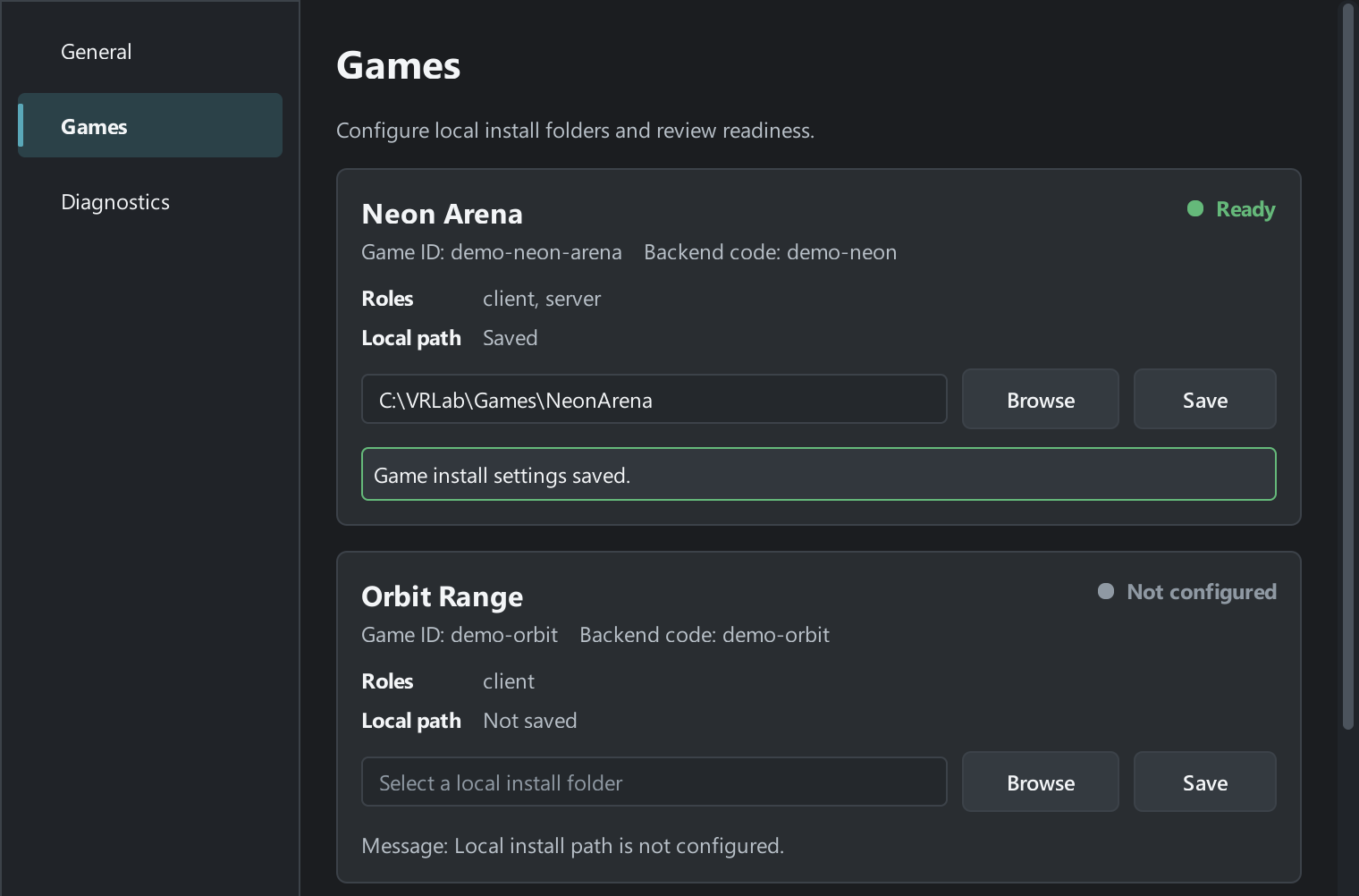
Save writes the selected path to local settings. Install or repair game files separately. A path with a typo or a folder missing the expected file can still be saved. To clear the folder assignment, save an empty path.
Check readiness
Section titled “Check readiness”| Status | What to check |
|---|---|
| Not configured | The folder is unset. Choose the installed game’s folder and select Save. |
| Executable not found | Agent could not find an executable expected by a launch profile. Compare the path in Message with the folder contents, correct the path or repair the game files, and select Save again. |
| Ready | Agent found the required executables for the supported Windows profiles. At launch it checks the executable for the selected role again. |
| NoPlatformProfile or InvalidConfig | The game has no Windows launch profile or the configuration has an error. Give your administrator the Game ID, status, and Message. |
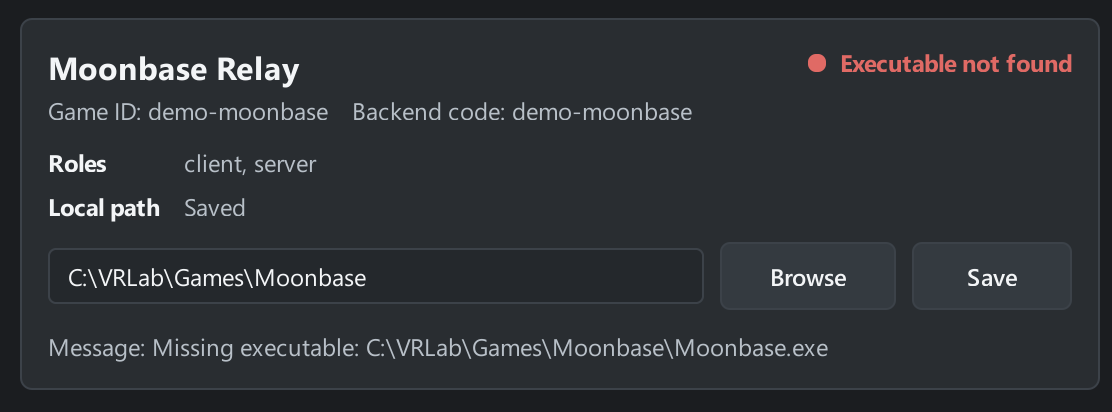
If Save is unavailable, wait for any other save to finish and check that Local game installs has a path in Diagnostics. If Agent reports an error reading or writing the settings, record the card’s message and open the logs.
You can change the folder while a game is running. Agent uses the new path the next time the game launches.
Check the PC in Launcher Admin
Section titled “Check the PC in Launcher Admin”Open the same game in Launcher Admin and allow time for the PC list to refresh. To take part in a session, the PC must be online and idle, belong to My Agents, have a compatible catalog, and support the required role for the ready game. If the PC is unavailable for the role, check the reason shown in the PC list. See My Agents and Updating the Game Catalog for details.