Diagnostics and Logs
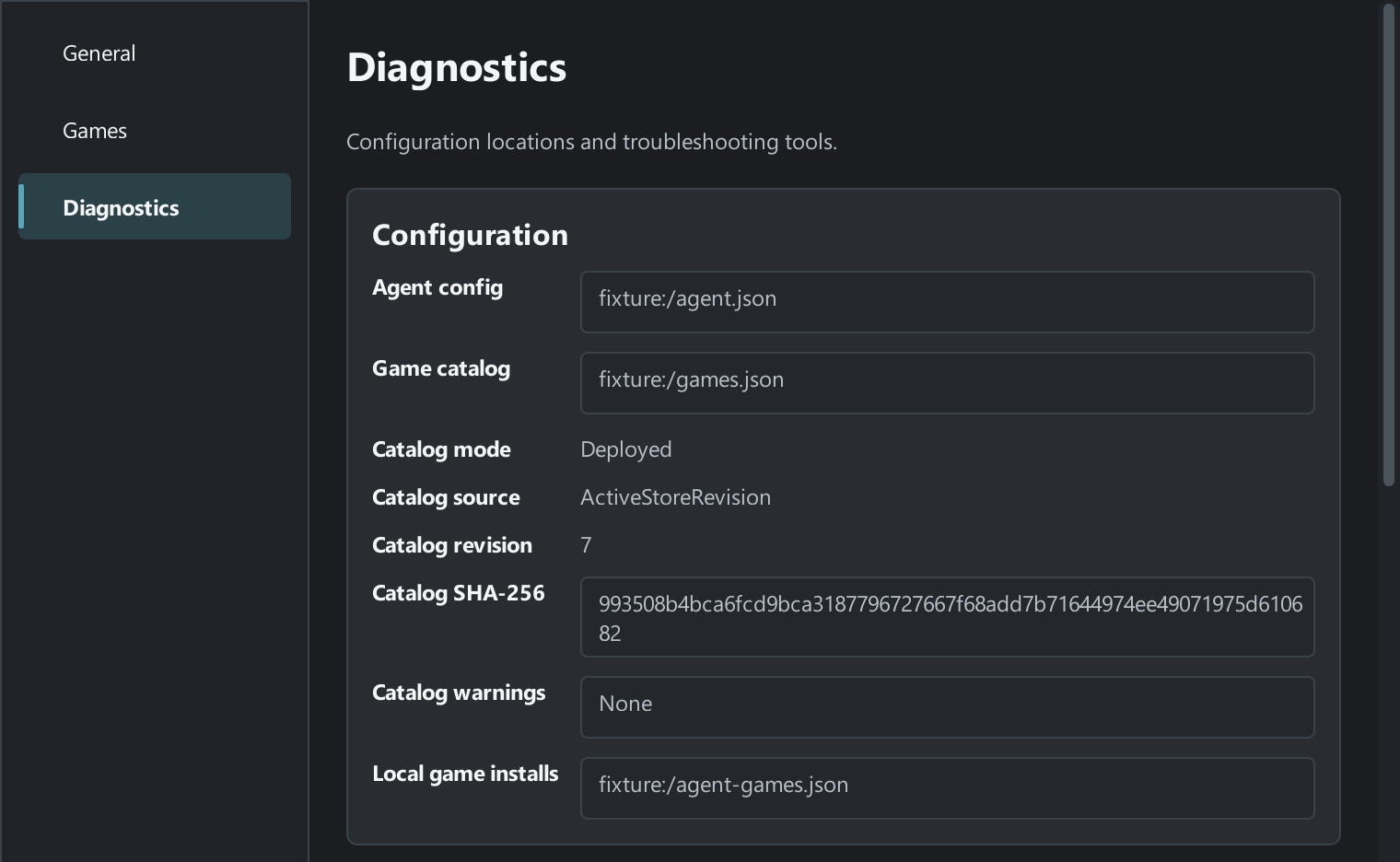
Open Windows Agent on the gaming PC and select Diagnostics. This tab shows which files Agent uses and the results of its checks, and gives you access to its logs.
Check the configuration
Section titled “Check the configuration”- Agent config shows the path to the loaded application configuration.
- Game catalog shows the path to the catalog. Catalog mode, Catalog source, Catalog revision, and Catalog SHA-256 identify the copy Agent uses. Any catalog warnings appear under Catalog warnings.
- Local game installs shows the file that stores local game folders. Check an individual game’s folder in Games.
Find the cause of a problem
Section titled “Find the cause of a problem”| Problem | Where to look |
|---|---|
| Agent lost its connection | In General, record Status, the intended server under Launcher connections, and Details if shown. Check the PC’s network and the Launcher Server status. Check the connection. |
| A game is not ready | In Games, record the Game ID, status, and Message. Check the saved folder and the expected executable. Check the installation. |
| Catalog synchronization failed | In Catalog synchronization, read Last check and Summary. Record any warnings and Diagnostic stage, Diagnostic code, and Diagnostic message if shown. Check the catalog. |
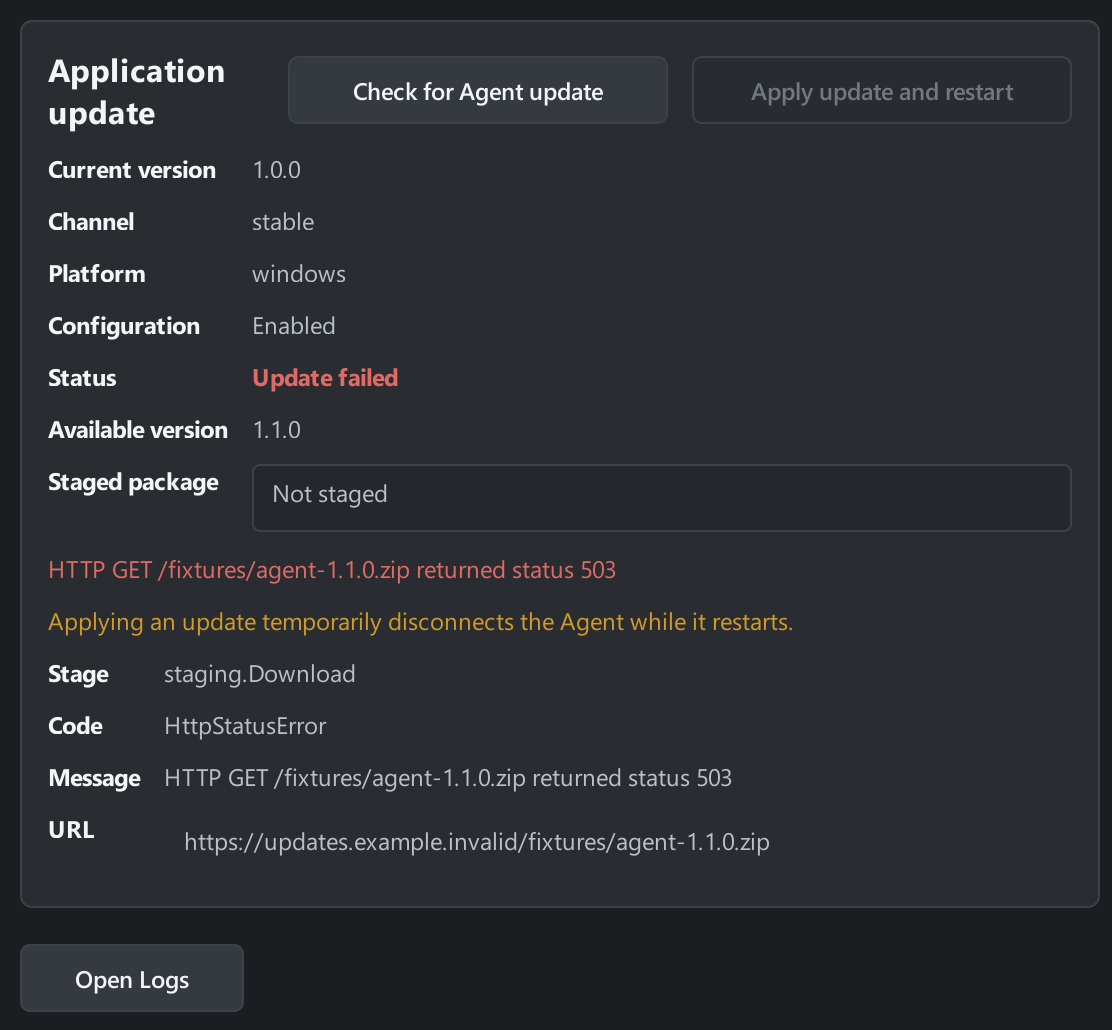
| The application update failed | In Application update, record Current version, Available version if shown, and Status. Below them, you may see Stage, Code, Message, Path, and URL. Check the Agent update. |
Open the logs
Section titled “Open the logs”At the bottom of Diagnostics, select Open Logs. The New VR Launcher Agent tray icon menu has the same command. The Agent log folder opens in Windows File Explorer. If it fails to open, ask your administrator to check access to the log folder on that PC.
When contacting support, include the time of the error, Display name and Agent ID from General, the error text, and the action that triggered it. Attach the log lines around that time. Remove tokens and other secrets from the log copy before sharing it.